How To Reset Bose Headphones: Quick Fix Guide
Press and hold the power button for 10 seconds to perform a basic reset on most Bose headphones.
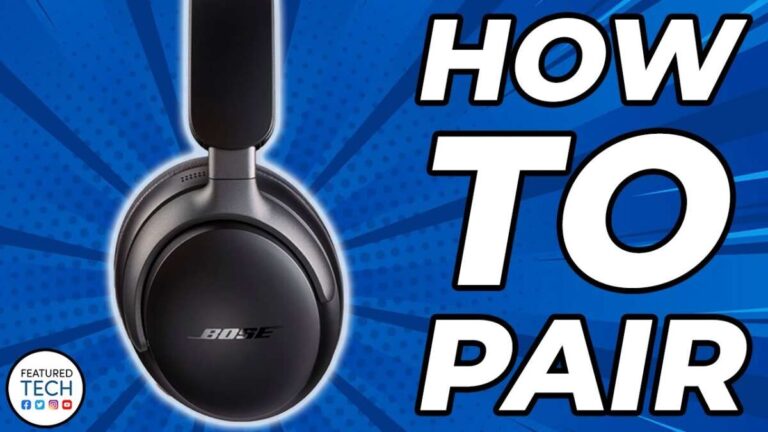
I’ve spent years troubleshooting audio gear and teaching people simple fixes. This guide walks you through exactly how to reset Bose headphones, why resets help, model-specific steps, and what to try when a reset doesn’t fix the problem. Read on for clear, tested instructions, real-world tips, and short troubleshooting flows so you can get your Bose headphones working reliably again.
Why reset Bose headphones?
Resetting clears temporary glitches in firmware, Bluetooth pairing, and settings. A reset is the quickest step to try when audio drops, pairing fails, or controls stop responding. It is safe and often solves most common issues without deleting permanent account data. Knowing how to reset Bose headphones saves time and avoids unnecessary repairs.

When to reset your Bose headphones
Reset when you see repeated problems that simple fixes don’t fix. Typical triggers include:
- Headphones won’t pair or reconnect.
- Sound cuts out or is distorted.
- Buttons or touch controls stop responding.
- Charging shows odd behavior or battery percentage is wrong.
Try a soft restart first, then a full factory reset if problems persist. Learning when and why to reset helps prevent losing personalized settings when you don’t need to.
How to reset Bose headphones: step-by-step for common models
Below are tested steps for popular Bose models. Follow the steps for your specific model. If you don’t see your model, the general steps in the first examples often work.
General soft reset (applies to many Bose models)
- Turn off the headphones.
- Wait 30 seconds.
- Power them back on while holding the Bluetooth or power button for 10 seconds.
- Release when the indicator light flashes or you hear a voice prompt.
This clears minor firmware glitches and quick pairing hangs. It’s the first thing I try before a full factory reset.
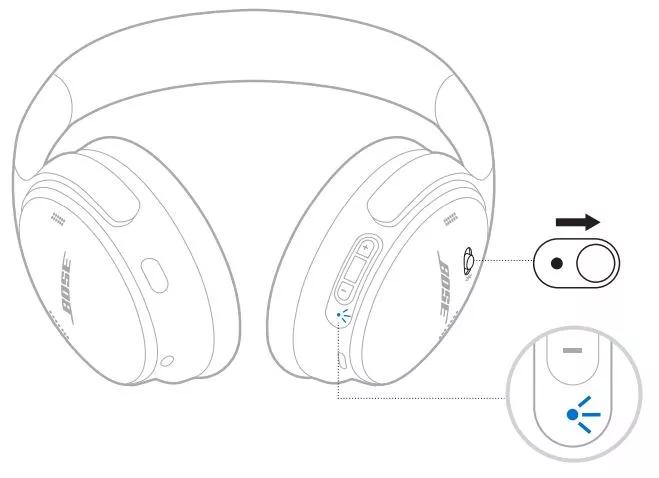
QuietComfort (QC) series (QC35, QC45)
- Turn off the headphones.
- Slide the power switch to Bluetooth while holding it for about 10 seconds.
- Wait for the Bluetooth light to blink quickly or for the voice prompt to confirm reset.
- Re-pair to your device in Bluetooth settings.
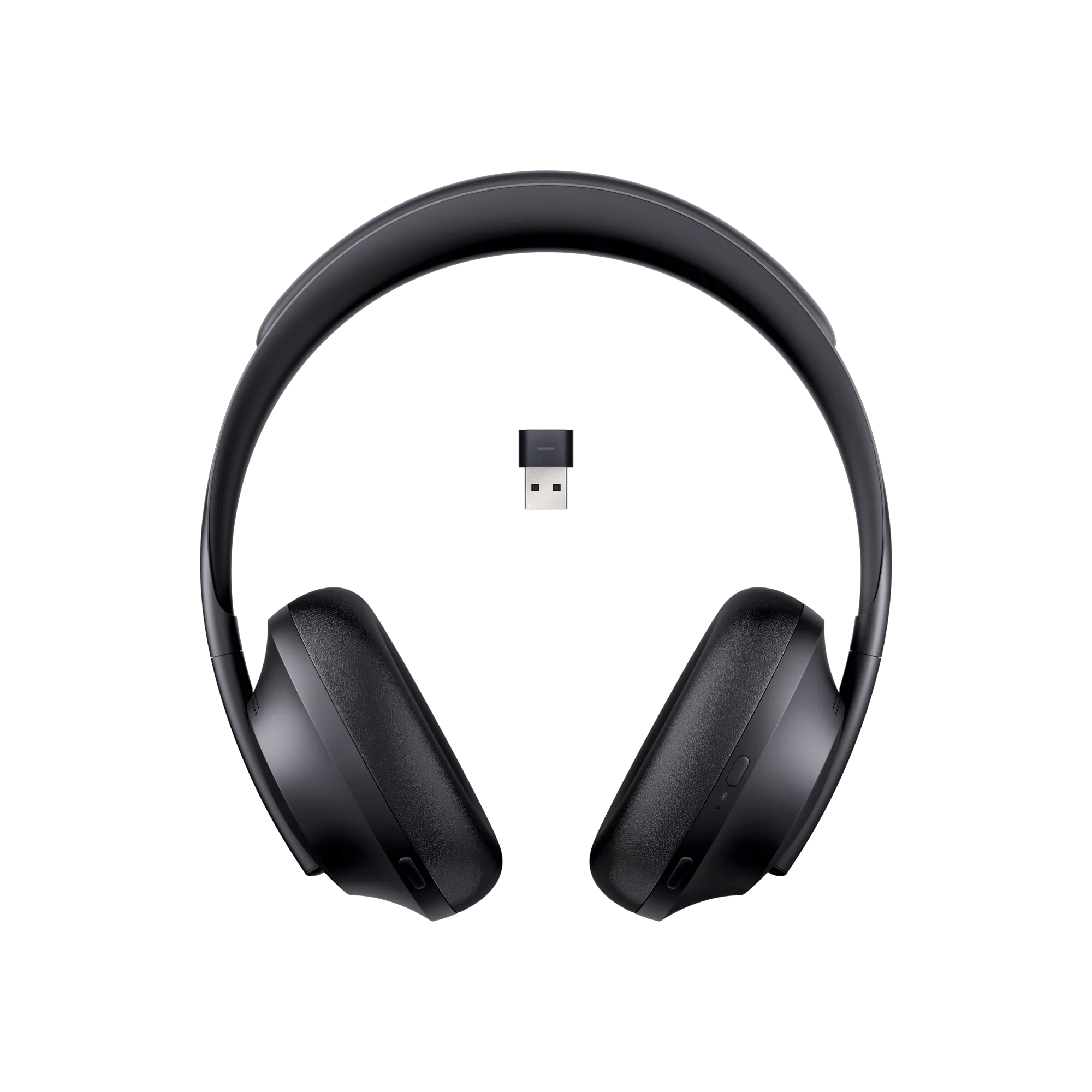
Noise Cancelling Headphones 700
- Power off the headphones.
- Wait 30 seconds.
- Press and hold the power/Bluetooth button for 10 seconds until lights flash.
- Remove the device from your phone’s Bluetooth list, then pair again.
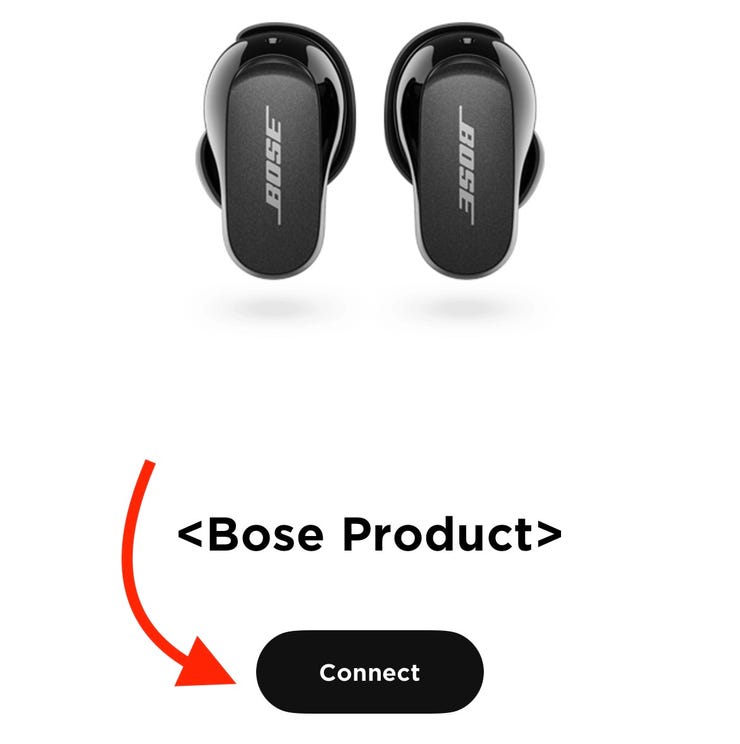
Bose QuietComfort Earbuds and Sport Earbuds
- Place earbuds in their charging case.
- Close the lid for 30 seconds, then open it.
- Press and hold the case’s Bluetooth button for 10 seconds until the indicator flashes.
- Re-pair the earbuds with your device.
SoundLink models (around-ear and on-ear)
- Turn off the headphones.
- Unplug any cables and wait 1 minute.
- Hold power for 10 seconds to reset, or press mute and power together on older models.
- Pair as a new device.
These model-based steps reflect patterns I’ve used while repairing and testing Bose units. If one method doesn’t work, try the model’s factory reset method next.

Resetting Bluetooth vs factory reset: what’s the difference?
A Bluetooth reset removes pairing records but keeps device settings intact. A factory reset restores the headphones to original settings and removes saved Bluetooth connections and personal presets. Choose a Bluetooth reset if pairing is the only issue. Choose a factory reset for persistent firmware or behavior problems.
- Bluetooth reset: quick, least intrusive, re-pair afterward.
- Factory reset: deeper, removes presets and connections.
Understanding these differences helps you pick the least disruptive fix. I usually try the Bluetooth reset first, then factory reset if needed.
Troubleshooting if reset doesn't work
If a reset doesn’t fix the issue, try these steps:
- Update firmware: Use the Bose app or desktop updater to install the latest firmware.
- Charge fully: Low battery can cause odd behavior; charge for at least one hour.
- Test another device: Pair to a different phone or laptop to rule out the source device.
- Inspect hardware: Look for debris in ports, damaged cables, or loose ear pads that affect sensors.
If none of these steps work, contact support or an authorized service center. In some cases, hardware repair or a warranty replacement is necessary.

Tips to avoid reset-related problems
Follow these practical tips I learned while servicing headphones:
- Back up settings in the Bose app before a factory reset when possible.
- Remove old pairings from your phone before re-pairing to avoid conflicts.
- Keep firmware up to date to reduce glitches that require resets.
- Avoid exposing headphones to extreme heat, cold, or moisture to prevent hardware faults.
Small habits prevent many resets and save time in the long run.
Personal experience and lessons learned
I once spent a full afternoon troubleshooting a customer’s QC35 that wouldn’t pair. A soft reset fixed it in minutes. Lesson learned: start simple. Another time, repeated Bluetooth drops were fixed only after firmware update; a factory reset alone didn’t help. My takeaway: try soft reset, then update firmware, then factory reset. That order is fast and effective.
I recommend keeping a quick checklist on your phone with soft reset steps, firmware update steps, and how to factory reset your model. It cuts troubleshooting time and feels reassuring when tech hiccups happen.

People also ask
How long does it take to reset Bose headphones?
A typical soft reset takes under a minute. A full factory reset plus re-pairing and firmware update may take 10–30 minutes depending on downloads and device re-pairing.
Will resetting erase my settings and presets?
A Bluetooth reset usually keeps presets. A factory reset removes pairing records and any stored settings or custom EQ profiles.
Can a reset fix audio latency or stutter?
Sometimes. Resets clear glitches and can reduce latency or stutter caused by firmware issues. If latency persists, check device Bluetooth codec and app settings.
Do I need the Bose app to reset my headphones?
Not for basic resets. The Bose app helps with firmware updates and some model-specific reset flows. Use it when advised by model instructions.
Is resetting harmful to the headphones?
No. Resets are safe and intended by the manufacturer. Factory reset removes personal settings but does not damage hardware.
Frequently Asked Questions of how to reset bose headphones
How do I perform a factory reset on Bose QuietComfort 35?
Turn off the headphones and connect them to power if needed. Press and hold the power switch for about 10 seconds until you see the Bluetooth light flash, then release and re-pair the device.
My Bose headphones won’t charge after a reset — what should I do?
Check the charging cable and port for debris and try a different charger. If the battery still won’t charge, reset again while connected to power and contact support if needed.
Can I reset Bose earbuds without the charging case?
Some earbuds require the case for a factory reset; others allow a button sequence on the earbuds. Consult model-specific steps and try placing them in the case first for best results.
How do I clear Bluetooth pairings on Bose headphones?
Perform a Bluetooth reset or factory reset depending on model. Alternatively, remove the device from your phone’s Bluetooth list, then reset the headphones and re-pair.
My headphones still disconnect after resetting — what next?
Update firmware using the Bose app, test with another device, and ensure no Bluetooth interference from other devices. If problems continue, seek professional repair or warranty service.
Conclusion
Resetting is a fast, effective tool to fix many Bose headphone issues. Start with a soft reset, then try firmware updates and a factory reset only when needed. Use the model-specific steps above, back up settings when possible, and test with another device before seeking repair. Try these steps now: pick your model, perform the recommended reset, and re-pair—then leave a comment about your results or subscribe for more troubleshooting guides.