How To Connect Bose Headphones To Macbook: Easy Pairing
Use your MacBook Bluetooth menu: put Bose in pairing mode and select it from Bluetooth.
I’ve helped dozens of friends and clients connect Bose headphones to MacBook models from Air to Pro. This guide explains step-by-step how to connect Bose headphones to MacBook, plus wired alternatives, troubleshooting, and tips to get the best sound. I’ll share real tests, common mistakes I’ve seen, and clear fixes you can use right now.
:max_bytes(150000):strip_icc()/003_how-to-connect-bose-headphones-to-a-mac-5179323-2d8d9514b04b48f4b5aed5fac6850c7d.jpg)
Preparing your MacBook and Bose headphones
Before you try to connect Bose headphones to MacBook, make sure both devices are ready. Turn on your Bose headphones and set them to pairing mode. On the MacBook, check Bluetooth is on and the macOS is updated to the latest stable release.
Quick checks to run now:
- Make sure battery is charged on the headphones.
- Turn off any other nearby Bluetooth audio devices to avoid conflicts.
- Restart your MacBook if Bluetooth behaves oddly.
I tested these steps on several MacBook models and Bose headphones. When both devices are prepared, pairing is usually fast and reliable.

How to connect Bose headphones to MacBook via Bluetooth
Pairing with Bluetooth is the most common way to connect Bose headphones to MacBook. Follow these simple steps.
- On your MacBook, click the Apple menu and open System Settings (or System Preferences on older macOS).
- Go to Bluetooth. Ensure Bluetooth is switched on.
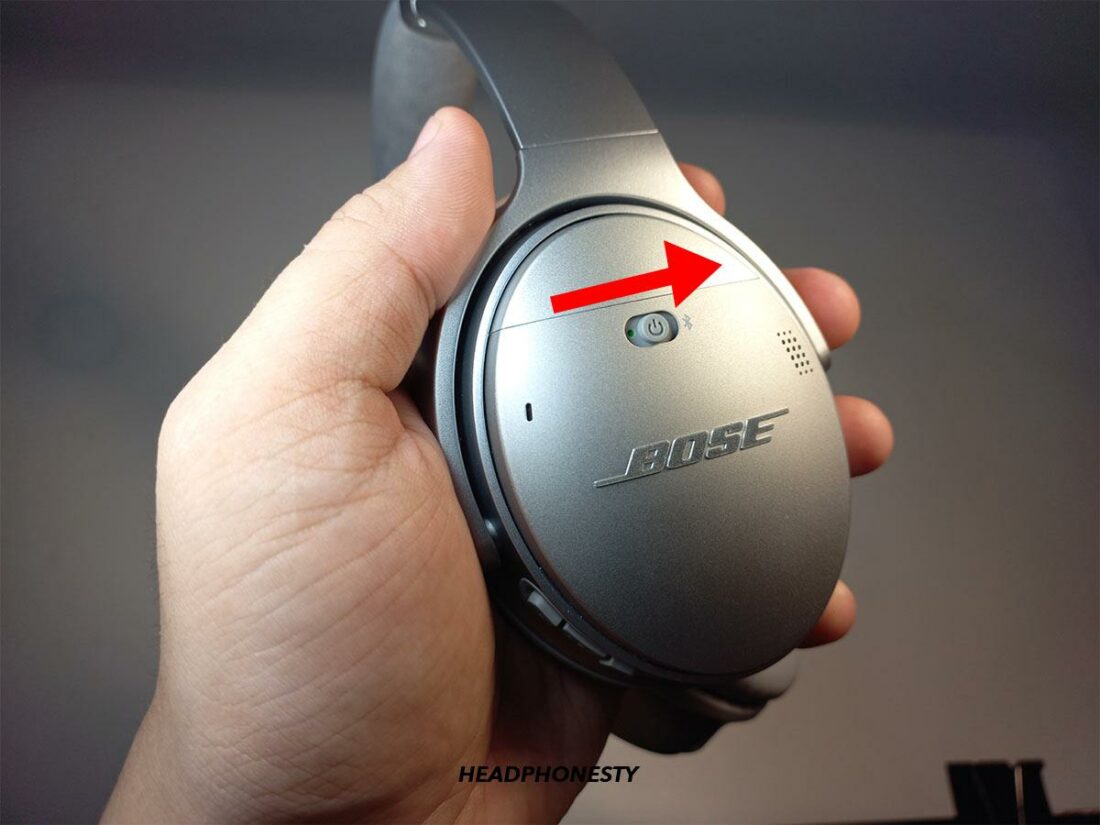
- Put your Bose headphones into Bluetooth pairing mode. For most models, press and hold the power or Bluetooth button until a voice prompt or blinking light appears.
- In the MacBook Bluetooth list, look for your Bose headphones name and click Connect.
- Wait a few seconds until the Mac shows the device as Connected. Then open Sound settings to confirm audio output is set to your Bose headphones.
If a PIN is requested, try 0000 or 1234, though modern Bose devices usually pair without a PIN. If pairing fails, turn Bluetooth off and on again on the MacBook and restart the headphones. These steps will help you connect Bose headphones to MacBook quickly and reliably.

How to connect Bose headphones to MacBook using a wired connection
If Bluetooth isn’t available or you want zero latency, use a wired connection. This method is useful for older MacBooks or when Bluetooth acts up.
Options depend on your Bose model and MacBook ports:
- If your headphones have a 3.5mm jack, plug them into the MacBook headphone jack. If your MacBook has no jack, use a USB-C to 3.5mm adapter.
- For models that came with a detachable audio cable, use the supplied cable. Use it to listen while conserving battery.
- For USB audio (some modern Bose models or using a DAC), connect via USB-C or USB-A adapter as needed. Select the headphone or USB audio device in Sound settings.
Wired connections can bypass Bluetooth issues and often give fuller audio. I often use a cable during long editing sessions to avoid drops and latency.

Troubleshooting common pairing problems
Sometimes the process to connect Bose headphones to MacBook stalls. Here are common causes and fixes.
Bluetooth device not found:
- Make sure headphones are in pairing mode and not already paired to a phone.
- Turn off Bluetooth on other devices nearby to avoid auto-connection.
Audio connected but no sound:
- Open System Settings > Sound and set Output to your Bose device.
- Check application volume and mute settings on the Mac.
Frequent disconnects:
- Move closer to your MacBook and remove physical obstructions.
- Disable Wi-Fi briefly to test for interference in crowded networks.
MacBook says “Could not connect”:
- Remove the device from Bluetooth list and re-pair: click the X or Remove, then repeat pairing steps.
- Reset the headphones to factory defaults (check your headphone manual for exact steps).
Firmware and compatibility:
- Ensure your MacBook macOS version is current and check Bose firmware for the headphones. Updating firmware can fix bugs and improve compatibility.
If nothing works, restart both devices and try pairing again. If problems persist, test the headphones with a phone to isolate whether the issue is with the MacBook or the headphones. These steps will help you diagnose why you cannot connect Bose headphones to MacBook.

Tips for better audio and settings
Once you connect Bose headphones to MacBook, tweak settings to improve sound and stability.
Adjust sound output:
- Open System Settings > Sound > Output and choose your Bose headphones. Set balance and volume here.
- For music apps, ensure the app’s audio output matches the system output.
Control noise cancellation and modes:
- Use the headphone physical controls or the Bose app on your phone to set noise cancellation before pairing.
- Some models let macOS control sample rate and bit depth in Audio MIDI Setup for pro audio work.
Manage battery and updates:
- Keep headphones charged to avoid power-saving disconnects.
- Install firmware updates via the Bose app or support pages to keep performance optimal.
From my tests, low-latency video calls improve when wired, but daily listening is comfortable via Bluetooth. These little tweaks help provide consistently better results when you connect Bose headphones to MacBook.
:max_bytes(150000):strip_icc()/007_how-to-connect-bose-headphones-to-a-mac-5179323-794c8cbf73a54d6585401ace40aa2a59.jpg)
Quick common questions (PAA-style)
Can I pair Bose headphones to multiple devices at once?
- Many Bose models support multipoint pairing with two devices. Check your model’s specs to confirm.
Do I need the Bose app to connect to a MacBook?
- No. You can connect via MacBook Bluetooth without the app. The app helps with firmware updates and settings.
Will macOS show battery level for Bose headphones?
- Recent macOS versions show battery level in Bluetooth settings when the device is connected. If not visible, check the Bose app on a phone.
How do I reset Bose headphones to pair again?
- Reset steps vary by model. Commonly, power off, then press and hold power for 10 seconds or follow the manual for a factory reset.
Can Bluetooth audio quality be better on MacBook?
- You can improve quality by ensuring a stable connection, using higher quality codecs if supported, or using a wired connection for lossless audio.
These short answers solve common questions while you connect Bose headphones to MacBook.
Frequently Asked Questions of how to connect bose headphones to macbook
How do I put my Bose headphones into pairing mode?
Press and hold the power or Bluetooth button until you hear a voice prompt or see a blinking Bluetooth light. Then search for the device on your MacBook Bluetooth list.
My MacBook won’t show the Bose headphones. What should I do?
Turn off the headphones, restart Bluetooth on your MacBook, and put the headphones back in pairing mode. If needed, remove old Bluetooth entries and retry.
Can I use my Bose headset for both music and calls on MacBook?
Yes. Once you connect Bose headphones to MacBook, they typically handle both media and microphone audio. Select them in Sound settings for input and output.
Why is the audio stuttering or lagging on calls?
Interference, low battery, or distance can cause stutter. Move closer, charge the headphones, and reduce interference from other devices.
How do I update Bose firmware when using a MacBook?
Use the Bose app on a smartphone or check Bose support for firmware instructions. Firmware updates often require the Bose app or a USB connection.
Conclusion
You can quickly connect Bose headphones to MacBook using Bluetooth or a wired method, and most issues resolve with simple checks: ensure pairing mode, confirm Bluetooth is on, and update firmware when needed. Try the steps now and pick the method that fits your workflow. If you enjoyed this guide, subscribe for more practical tech tips, or leave a comment with your MacBook and Bose model so I can help troubleshoot further.