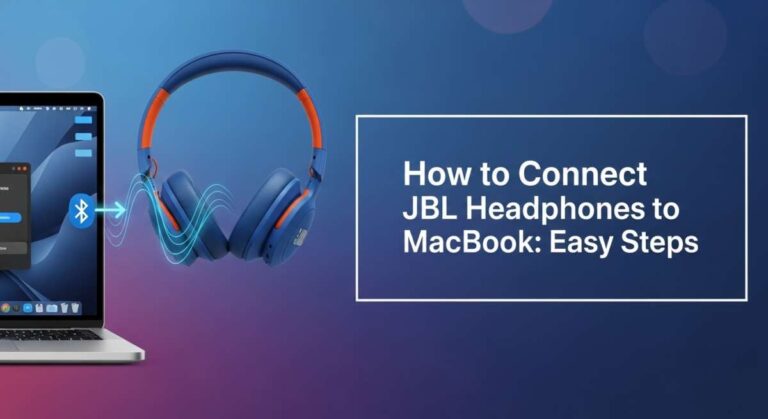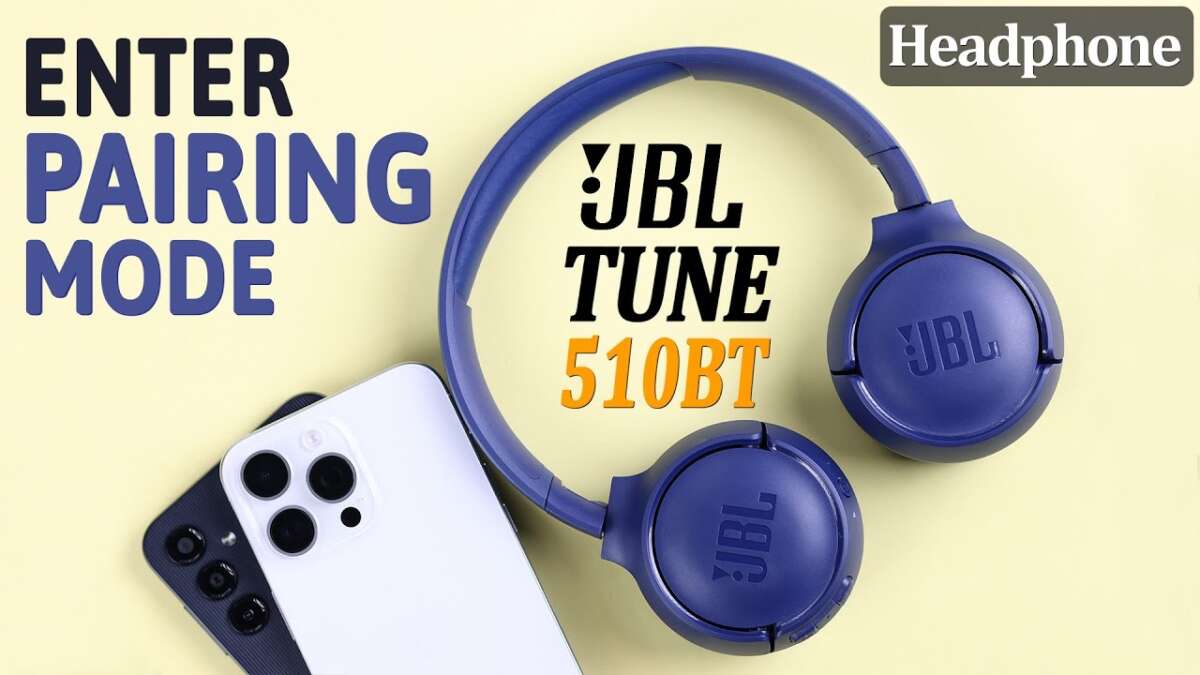
How To Put JBL Headphones In Pairing Mode: Easy Steps
Press and hold the power or Bluetooth button until the LED flashes rapidly, then find it in your device’s Bluetooth list.
I’ve spent years fixing Bluetooth puzzles and testing dozens of JBL models, so I’ll walk you through exactly how to put JBL headphones in pairing mode, step by step. This guide covers common models, precise button presses, LED patterns to watch for, fixes for pairing problems, and real-world tips I learned the hard way—so you’ll pair fast and keep the connection stable.
Quick step-by-step: How to put JBL headphones in pairing mode, fast
Follow these simple steps to get almost any JBL headphone into pairing mode. These steps work for on-ear, over-ear, and most true wireless earbuds.
- Charge the headphones first
- Ensure at least 20–30% battery. Very low battery can stop pairing from starting.
- Power on the headphones
- Press and hold the power button for 1–2 seconds to turn them on. For many JBL models, the next step is immediate.
- Enter pairing mode
- Press and hold the power or Bluetooth button for 3–7 seconds until the LED flashes quickly or alternates colors, or you hear a voice prompt saying “Ready to pair.”
- For true wireless earbuds, remove them from the case and hold the button on each bud or hold the case’s button until the LED indicator flashes.
- Open Bluetooth settings on your phone or computer
- Make sure Bluetooth is on. Look for the JBL model name in the device list and tap to connect.
- Confirm pairing
- Watch for a steady LED or a voice prompt that says “Connected.” Test audio playback.
How to put JBL headphones in pairing mode tip: if your device doesn’t appear, turn Bluetooth off and on, or select “Forget device” on a previously paired device before retrying.

Model-specific notes: Putting different JBL headphones in pairing mode
Different JBL models use slightly different button combos and LED cues. Here are targeted instructions for popular families.
-
JBL Tune and JBL Live series
- Turn on the headphones, then press and hold the power/Bluetooth button for about 5 seconds. The LED usually flashes white/blue and the voice prompt says “Pairing.”
-
JBL Free, JBL Reflect, and true wireless earbuds
- Take earbuds out of the case. Hold the touch area or small button on both buds for 3–5 seconds. The LED on the case or buds will flash. Some models automatically enter pairing mode when removed from the case for the first time.
-
JBL Club and JBL E-Series (over-ear)
- Power on, then press and hold the Bluetooth/power button for 5–7 seconds. Look for alternating blue and white LED flashes or hear “Bluetooth pairing.”
-
JBL Endurance and sport models
- Power on, then long-press the multi-function button until an LED blinks rapidly. Some sport models enter mono pairing first; put both buds in the case and hold the case button if you need stereo pairing.
How to put JBL headphones in pairing mode varies slightly by model, so check the LED pattern or voice cue to confirm you’re in pairing mode.

Troubleshooting: If pairing fails or the headphones won’t enter pairing mode
Pairing problems are common but often easy to fix. Here are causes and fixes I use most.
-
Headphones already paired to another device
- Cause: They auto-connect to a remembered device. Fix: Turn off Bluetooth on that device or “forget” the headphones there.
-
Low battery or charging issue
- Cause: Insufficient charge stops pairing. Fix: Charge for at least 15–20 minutes and try again.
-
Wrong button timing
- Cause: Short presses won’t trigger pairing. Fix: Hold the button longer—up to 10 seconds on some models.
-
Software or firmware glitches
- Cause: Outdated firmware or buggy firmware. Fix: Update firmware via the JBL app or factory reset the headphones.
-
Interference or distance
- Cause: Too far from device or crowded RF environment. Fix: Move within 3–6 feet and away from Wi‑Fi routers or microwaves.
Quick reset steps I use when nothing else works
- Forget the headphones on your phone, power off the headphones, then press-and-hold the power button for 10–15 seconds to force a reset. For true wireless buds, place them in the case and hold the case button for 10 seconds to reset pairing info.
How to put JBL headphones in pairing mode after a reset: power them on again and hold the Bluetooth/power button until the LED flashes.

Best practices and tips for reliable pairing and use
Use these simple rules to avoid repeat pairing issues and get the best Bluetooth experience.
-
Keep firmware updated
- Use the JBL app or device updates to install firmware fixes that improve pairing and connectivity.
-
Charge before pairing
- A partially charged device pairs more reliably and avoids mid-pair shutdowns.
-
Clear old pairings
- If you pair a lot of devices, occasionally clear the phone’s Bluetooth cache or “forget” unused devices.
-
Pair one device at a time
- Some JBL models do not support multi-point, or support it in a limited way. Check your model’s specs.
-
Use the right LED/voice cues
- Learn your model’s LED patterns and voice prompts so you know when the headphones are truly in pairing mode.
How to put JBL headphones in pairing mode faster: practice the long-press timing and watch the LED closely. Once you know your model’s cue, pairing becomes quick and predictable.
My experience: Real-world fixes and lessons learned
I’ve repaired many headphones and helped friends pair stubborn JBL models. Here are the real tips that saved me time:
-
Mistake: Holding the button too briefly
- Lesson: Most pairing modes need a long hold (3–10 seconds). If nothing happens, try a longer press.
-
Mistake: Assuming the LED means “on”
- Lesson: Some LEDs blink during power-on and only flash rapidly when in pairing mode. Wait for the rapid flash or a voice prompt.
-
Saved by firmware updates
- Lesson: On two occasions, a firmware update fixed repeated drops and pairing failures. Updating is worth the small effort.
-
Case resets for true wireless earbuds
- Lesson: When one bud won’t pair, I put both back in the case, held the case button for 10+ seconds, then re-paired. That restored stereo pairing every time.
How to put JBL headphones in pairing mode confidently: practice these steps a couple of times. The process becomes muscle memory.

Frequently Asked Questions of how to put jbl headphones in pairing mode
How long do I need to hold the power button to enter pairing mode?
Hold the power or Bluetooth button for about 3–10 seconds until the LED flashes rapidly or you hear a “Ready to pair” prompt.
My JBL headphones flash but won’t show up on my phone. What should I do?
Turn Bluetooth off and on on your phone, forget the device if listed, then retry pairing within close range and with a charged battery.
Do JBL true wireless earbuds pair automatically when removed from the case?
Many JBL true wireless models enter pairing mode automatically the first time you remove them, but others require a button press on the buds or the case.
How do I reset JBL headphones to force pairing mode?
Forget the headphones on your device, power off the headphones, then press and hold the power/Bluetooth button for 10–15 seconds. For earbuds, hold the case button with buds inside.
Can I pair JBL headphones with a laptop and a phone at the same time?
Some JBL models support multi-point pairing, but many do not. Check your model specs; if not supported, you must disconnect one device to pair the other.
Why do my headphones keep reconnecting to an old device?
They retain previous pairings and may auto-connect. Turn off Bluetooth on the old device or use “forget” to remove the entry to stop auto-reconnect.
Conclusion
You now have clear, practical steps for how to put JBL headphones in pairing mode, model-specific cues to watch for, and proven fixes for common issues. Try a long press, watch the LED or voice prompt, and use the reset steps if pairing fails. If you run into trouble, update firmware and clear previous pairings before trying again.
Take action: try pairing now, and leave a comment about your model and issue if you still need help—I'll help you troubleshoot.