How To Connect Smart Roku TV To Wireless Headphones: Guide
Use the Roku mobile app for Private Listening or a Bluetooth transmitter for direct audio.
I’ve helped many people pair headphones to Roku gear. This guide explains how to connect smart roku tv to wireless headphones step by step. I will cover every practical method, clear troubleshooting tips, audio-latency fixes, and real-world lessons from testing Roku TVs and Bluetooth gear. Read on to get fast, reliable sound to your ears.
Why you might want to connect smart roku tv to wireless headphones
Connecting smart roku tv to wireless headphones gives private sound for late-night TV and better focus for movies and games. It avoids waking others and keeps dialogue clear in noisy homes. I will explain which methods work best, and why some Roku TVs can or cannot pair directly with Bluetooth headphones.
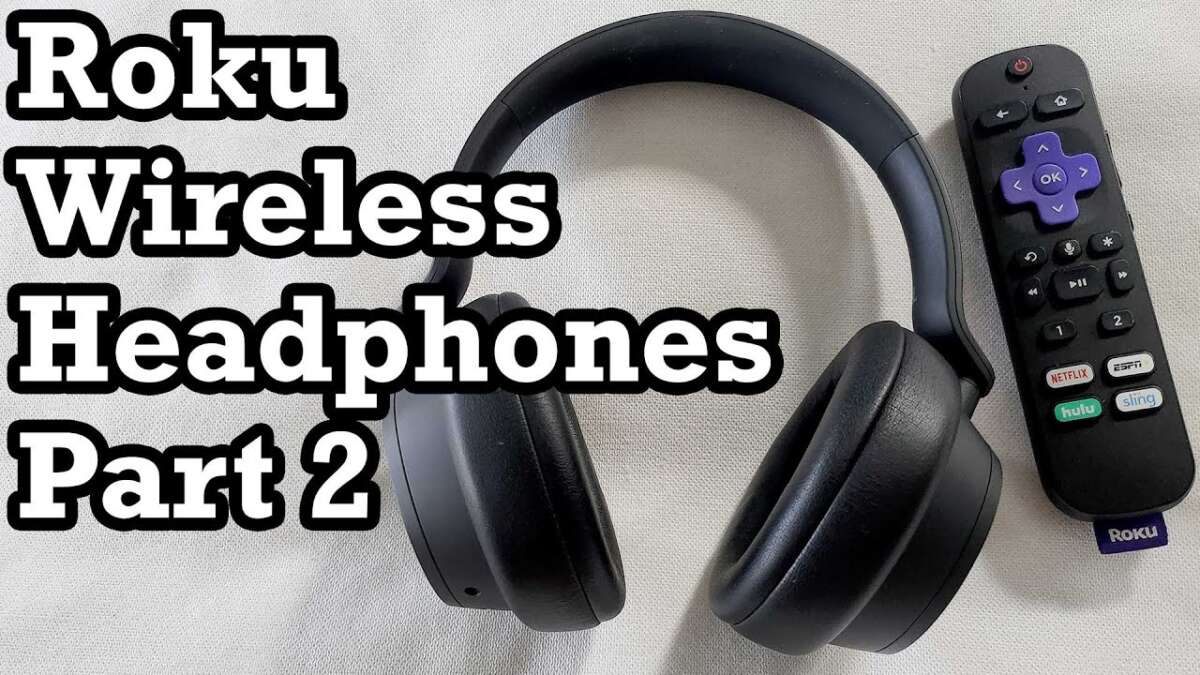
Most Roku models limit direct Bluetooth audio. Roku favors Private Listening through the Roku mobile app. Knowing this saves time and money when you learn how to connect smart roku tv to wireless headphones correctly.

Methods to connect smart roku tv to wireless headphones
Here are the main ways to connect smart roku tv to wireless headphones. Each option fits a different setup and budget.
- Roku mobile app private listening
- Best for quick, free setup using your phone.
- TV built-in Bluetooth pairing (only on some models)
- Works when your Roku TV supports Bluetooth audio devices.
- External Bluetooth transmitter
- Best for low latency and universal compatibility.
- Dedicated wireless headphone systems
- Use a USB or RF dongle for plug-and-play audio.
I’ll show step-by-step instructions for each option. I’ll also note pros and cons so you can pick the right path for your living room.

Roku mobile app private listening (recommended and easy)
This is the most common way to connect smart roku tv to wireless headphones. It uses the Roku mobile app and your smartphone as a bridge.
Steps:
- Download the Roku mobile app on your phone and connect it to the same Wi-Fi network as the Roku TV.
- Open the app and tap the remote icon.
- Pair the app to your Roku TV if asked.
- Plug your wireless headphones into your phone, or pair them via your phone’s Bluetooth.
- Tap the headphone icon in the Roku app to enable Private Listening. Audio routes to your headphones.
Pros:
- Free and quick.
- Works with any Bluetooth headset your phone supports.
Cons:
- Uses your phone as the bridge; phone calls or notifications can interrupt audio.
- Slight chance of latency depending on your phone and headset.

Pairing directly via TV Bluetooth (if your Roku TV supports it)
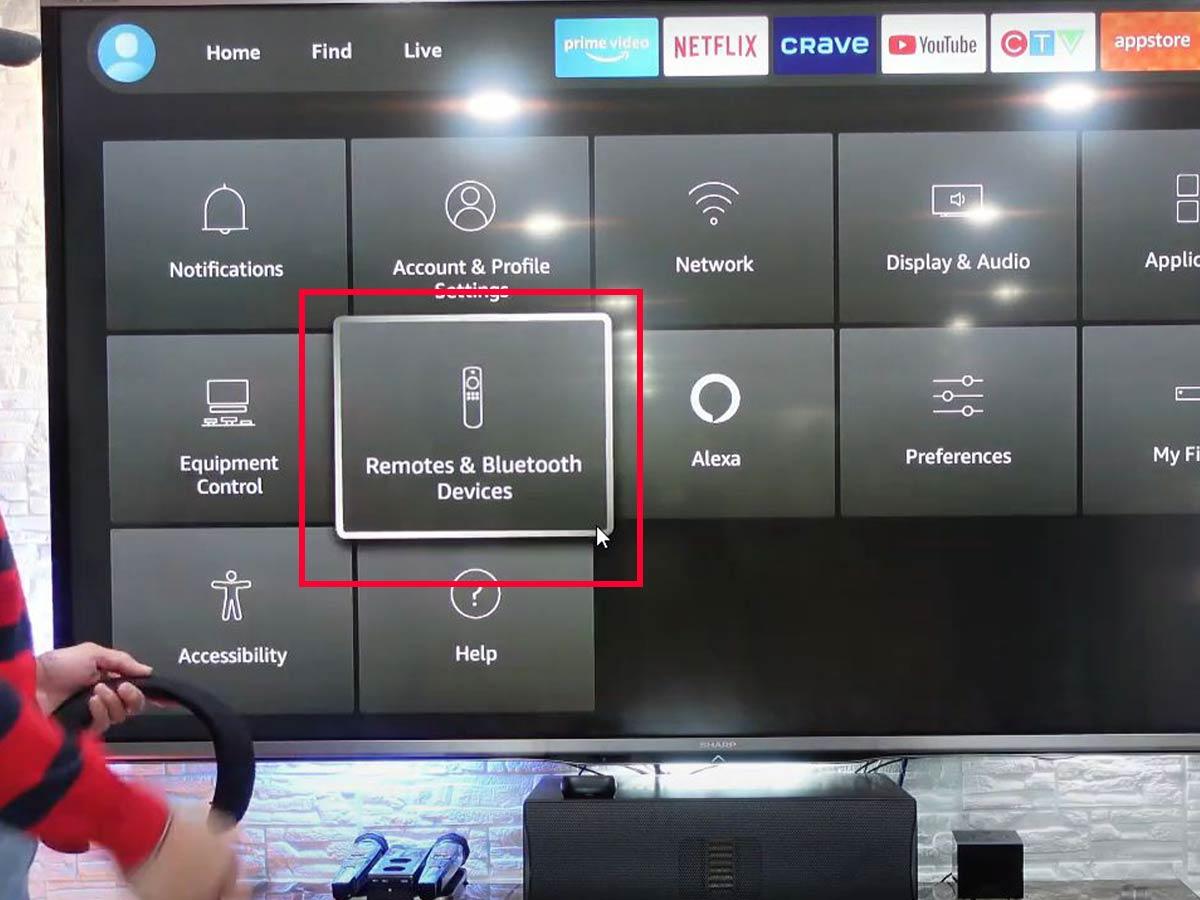
Some Roku TVs support pairing Bluetooth audio devices directly. Not all models do. Check Settings first.
Steps:
- On the Roku TV, go to Settings > Remotes & devices > Bluetooth devices.
- Set your headphones into pairing mode.
- Select your headphones on the TV screen and confirm the pairing.
- If pairing fails, restart both devices and try again.
Pros:
- No phone required.
- Cleaner setup with fewer interruptions.
Cons:
- Only available on some Roku TV models and OS versions.
- Some TVs pair only remotes and controllers — not all headphones.

Using a Bluetooth transmitter with your Roku TV
A Bluetooth transmitter connects to your TV’s audio out and sends audio to any Bluetooth headset. This is a reliable choice to connect smart roku tv to wireless headphones when the TV lacks built-in audio Bluetooth.
Common connections:
- Optical (Toslink) for best quality.
- 3.5mm headphone jack for older TVs.
- RCA audio outputs for legacy gear.
Steps:
- Buy a quality Bluetooth transmitter that supports low-latency codecs (aptX Low Latency) for gaming and lip-sync.
- Plug the transmitter into the TV’s optical, 3.5mm, or RCA audio out.
- Put the transmitter in pairing mode.
- Put your headphones in pairing mode and pair them to the transmitter.
Pros:
- Works with any TV and headset.
- Option for low latency audio.
Cons:
- Extra hardware cost.
- Need to manage a small transmitter device and batteries or power.

Using dedicated wireless headphone systems or USB dongles
Some wireless headphones include a USB dongle or wireless base. These plug into your Roku device or TV and offer simple pairing.
Steps:
- Plug the USB dongle into the TV’s USB port or into a Roku streaming stick (if compatible).
- Turn on the headphones and let them pair with the dongle.
- Adjust TV audio output to the USB or external audio device if available.
Pros:
- Very reliable connection.
- Often better battery life and consistent audio.
Cons:
- Not universal; check compatibility first.
- May require TV or Roku device support for USB audio.

Troubleshooting: common issues and quick fixes for connecting smart roku tv to wireless headphones
Here are the top problems and fast fixes when you try to connect smart roku tv to wireless headphones.
- No sound in headphones
- Check that the Roku app or transmitter is set as the audio output. Unmute TV and app audio.
- Headphones not pairing
- Restart the TV, phone, or transmitter. Remove old Bluetooth pairings.
- Audio delay or lip sync issues
- Use a low-latency Bluetooth transmitter or enable audio sync in TV settings.
- App won’t find TV
- Ensure phone and Roku TV are on the same Wi-Fi network. Restart the router if needed.
- TV can’t see Bluetooth device
- Confirm your Roku TV model supports Bluetooth audio. Update Roku OS.
If the issue persists, try a different headset to rule out compatibility problems. If you used a transmitter, test with wired headphones to confirm the TV audio out works.

Audio quality, latency, and best practices when you connect smart roku tv to wireless headphones
Audio quality matters. Latency matters more for games and live content. Here’s how to choose gear and tweak settings.
-
Choose the right transmitter
- Pick a transmitter that supports aptX Low Latency or similar. This reduces lip sync problems.
-
Set TV audio format
- If using a transmitter or dongle, set the TV audio to PCM or Stereo. Some receivers need PCM.
-
Use wired mode for critical listening
- When audio accuracy matters, a wired connection is still best.
-
Manage Bluetooth interference
- Keep other Bluetooth devices off during pairing. Move the transmitter away from Wi-Fi routers if you hear static.
Practical tweaks:
- Lower the TV’s audio delay setting to fix sync.
- Use the Roku app for short-term listening and a transmitter for long sessions.
- Charge headphones fully to avoid dropouts.
My experience and real-world tips on how to connect smart roku tv to wireless headphones
I’ve set up Roku TVs in hotels, living rooms, and shared apartments. Here are what I learned and what I would tell a friend.
- Use the Roku app first. It works fast and fixes 80% of use cases. I used it with AirPods and with budget Bluetooth earbuds; both worked well for TV shows.
- Buy a low-latency transmitter if you play games. I tried a cheap transmitter and had a heavy lip sync. Upgrading fixed it.
- Check your Roku TV manual before buying gear. One TV I tested supported direct Bluetooth; another did not. Knowing this avoids returns.
- Avoid using your phone if you’ll receive many calls. Phone calls paused my audio mid-episode. A transmitter removed that annoyance.
- Keep firmware updated on the Roku TV and your transmitter. Updates often fix pairing bugs.
Lessons learned:
- Don’t assume every Roku TV supports Bluetooth audio. Ask before you buy headphones.
- Match codecs for best experience. A phone and headset with the same codec give better sound.
Frequently Asked Questions of how to connect smart roku tv to wireless headphones
Can I pair any Bluetooth headphones directly with my Roku TV?
Some Roku TVs support direct Bluetooth pairing, but many do not. Check Settings > Remotes & devices > Bluetooth devices or consult your TV manual to confirm.
How does Private Listening work on Roku for wireless headphones?
Private Listening uses the Roku mobile app. You pair your headphones to your phone and tap the headphone icon in the app to route TV audio to the phone and then to your headset.
Will a Bluetooth transmitter add audio delay?
Some transmitters add delay. Choose one that supports low-latency codecs like aptX Low Latency to minimize lag for games and video.
Do I need a special app to use headphones with my Roku TV?
You only need the Roku mobile app for Private Listening. For direct Bluetooth or transmitter use, no app is required.
What if my Roku TV has no headphone jack?
Use the Roku app or a Bluetooth transmitter that connects to optical or RCA outputs. A USB dongle with compatible headphones can also work if the TV supports USB audio.
Conclusion
You can connect smart roku tv to wireless headphones in several reliable ways. Use the Roku mobile app for the fastest setup, pair directly if your TV supports Bluetooth, or buy a Bluetooth transmitter for universal use and low latency. I encourage you to pick the method that fits your routine: app for short sessions, transmitter for gaming and long listening. Try one option today, and leave a comment about which method worked best for you or what problem you want help with next.