How To Connect Bluetooth Headphones To Xbox Series S: Guide
Use a Bluetooth transmitter into the controller for low latency audio and chat.
I’ve spent years testing headsets and consoles. In this guide I explain how to connect bluetooth headphones to xbox series s with clear, tested options. You’ll get step-by-step instructions, real-world tips, and fixes for common problems so you can pick the best method and avoid wasted time.
:max_bytes(150000):strip_icc()/PXL_20201108_004746486-e6e2c998b9704a258f0fa4878556501e.jpg)
Why Xbox Series S does not support Bluetooth audio natively
Xbox Series S does not allow general Bluetooth audio connections. Microsoft built the console to use Xbox Wireless for low-latency controllers and headsets. That design keeps lag low for games. It also protects voice chat and party features that rely on Xbox services.
Knowing this helps. If you want to connect bluetooth headphones to xbox series s, you must use a workaround. The common routes are a Bluetooth transmitter, your TV’s Bluetooth, or the Xbox mobile app for remote play. Each has trade-offs in latency, mic support, and audio quality.
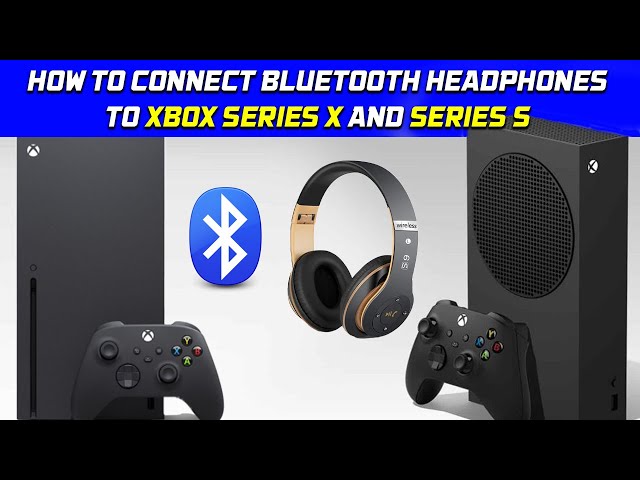
Methods to connect Bluetooth headphones to Xbox Series S
Here are the main methods to connect bluetooth headphones to xbox series s. I list each one with quick pros and cons so you can decide fast.
- Use a Bluetooth transmitter plugged into the controller 3.5mm jack or USB audio. Pros: low cost, simple. Cons: variable latency and mic support.
- Use your TV’s Bluetooth if it supports it. Pros: easy pairing. Cons: extra lag and mic usually won’t work for game chat.
- Use the Xbox mobile app with Remote Play or the console’s streaming. Pros: works with phone Bluetooth and can support chat. Cons: requires good network and adds latency.
- Buy an Xbox Wireless headset. Pros: native support, low latency, full chat features. Cons: higher cost and limited to Xbox-compatible models.
All these options let you connect bluetooth headphones to xbox series s in practice. I’ll walk through steps for each one below.
Step-by-step: Using a Bluetooth transmitter with your controller
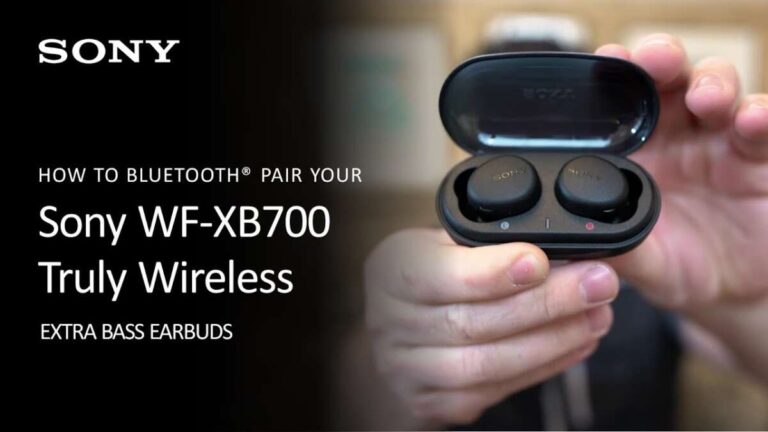
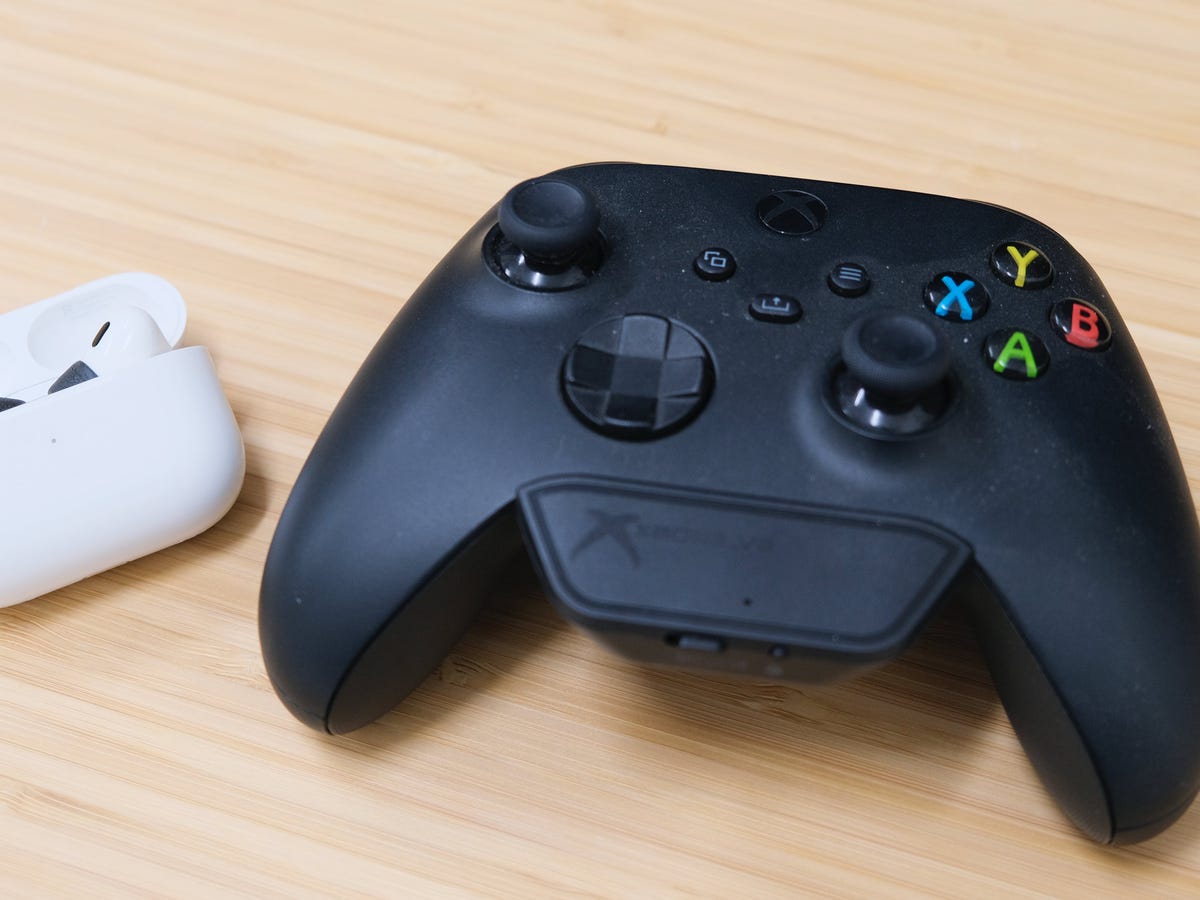
A Bluetooth transmitter is the most common trick to connect bluetooth headphones to xbox series s. I use this method often for casual play.
- Choose the right transmitter.
- Pick a transmitter that supports aptX Low Latency if your headphones do too. That lowers lag.
- Ensure the transmitter supports mic passthrough if you need voice chat.
- Plug it in.
- Plug the transmitter into the Xbox controller 3.5mm jack or into the console’s USB if the transmitter supports console audio.
- Turn on the controller and the console.
- Pair your headphones.
- Put your headphones in pairing mode.
- Press the transmitter’s pair button until the LED shows a connection.
- Test audio and mic.
- Start a game or play a video to check sound.
- Test voice chat in a party to confirm mic functionality. If the mic doesn’t work, you may need a separate mic or a transmitter with mic support.
Tips from my experience: plug the transmitter into the controller for the lowest lag. Some transmitters labeled “low latency” still show small delay with fast shooters. If you play competitively, an Xbox Wireless headset is a better choice.
Step-by-step: Using your TV’s Bluetooth
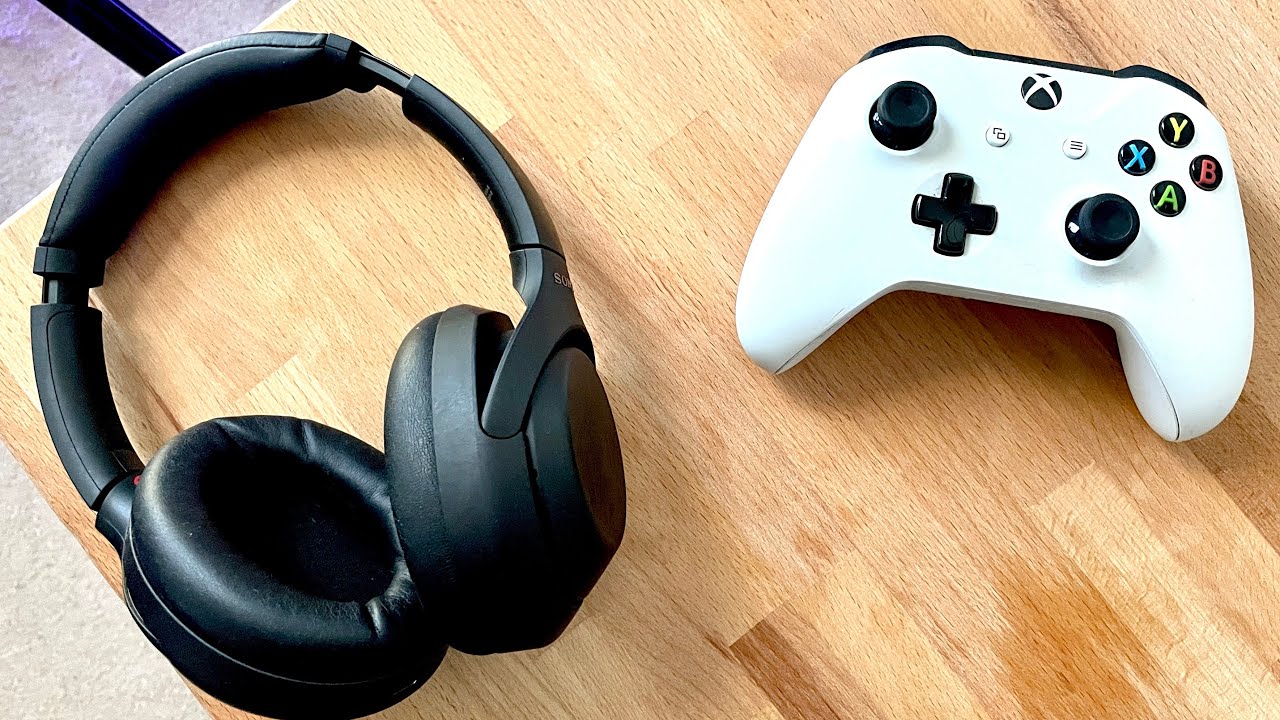
If your TV pairs with Bluetooth devices, you can route console audio through the TV and then to your headphones. This is quick but not perfect.
- Connect your Xbox Series S to your TV as usual.
- Put your headphones in Bluetooth pairing mode.
- Open your TV’s Bluetooth settings and pair the headphones.
- On the Xbox, set audio to output to HDMI (default). Confirm the TV is receiving audio.
- Adjust TV volume and headphone audio settings.
Pros and cons are simple. This method is easy if your TV supports it. The downside is latency and likely no game chat mic. If you need chat, use your phone app or a separate mic.

Step-by-step: Using the Xbox mobile app or Remote Play
Remote Play sends console audio to your phone or tablet over your home network. Then you connect Bluetooth headphones to the phone. This is reliable for voice chat and works well for casual play.
- Install the Xbox app on your phone (or use the Remote Play feature).
- Sign in with the same Xbox account.
- On the Xbox Series S, enable remote features in Settings > Devices & connections > Remote features.
- Start remote play from the app and connect to your console.
- Pair your Bluetooth headphones to the phone. The app will send game audio and chat to the phone.
This method often gives full chat support. It uses your Wi-Fi, so a strong local network is important. Expect modest latency depending on Wi-Fi quality. For single-player or casual games this works nicely.

Choosing the right option: pros, cons, and practical tips
Which method should you pick to connect bluetooth headphones to xbox series s? Use these rules I follow in real tests.
- For lowest lag and best chat: buy an Xbox Wireless headset or a headset with direct Xbox support.
- For budget and convenience: a controller-mounted Bluetooth transmitter is a good balance.
- For no extra hardware and easy setup: use your TV’s Bluetooth if you do not need mic support.
- For full chat with Bluetooth headphones: use the Xbox mobile app Remote Play on a strong Wi‑Fi connection.
Other practical tips from my experience:
- Test audio delay in a fast-paced game before committing. Some delay is subtle until you play a shooter.
- Keep firmware updated on transmitters and headphones for better compatibility.
- Don’t expect all USB Bluetooth dongles to work with the Xbox console; most will not.
- If chat is essential, verify microphone support before buying a transmitter.

Troubleshooting common issues when connecting Bluetooth headphones to Xbox Series S
If audio cuts out, lags, or chat doesn’t work, try these fixes. I’ve used these steps many times to resolve issues.
- No sound after pairing with transmitter
- Check transmitter is fully seated in the controller jack or USB.
- Reboot the controller and console. Re-pair the headphone.
- Audio lag too high
- Use an aptX Low Latency transmitter and aptX LL headphones.
- Move closer to the transmitter and remove signal blockers.
- Mic not working
- Most Bluetooth audio solutions don’t support console mic. Use the Xbox app for chat or get a transmitter with mic support.
- Intermittent drops
- Replace batteries or charge the transmitter and headphones.
- Check for wireless interference from routers or other devices.
- Pairing fails
- Reset both devices’ Bluetooth lists. Pair them fresh.
- Update firmware on the headset or transmitter if available.
If none of these fixes work, consider an Xbox-compatible headset. That often solves persistent compatibility problems.

Frequently Asked Questions of how to connect bluetooth headphones to xbox series s
Can I pair any Bluetooth headphones directly to Xbox Series S?
No. Xbox Series S does not support standard Bluetooth audio profiles. You must use a transmitter, TV Bluetooth, or the Xbox app as a workaround.
Will Bluetooth cause audio lag when gaming?
Yes. Bluetooth can add latency. Using aptX Low Latency gear or Xbox Wireless reduces delay. For competitive play, native Xbox headsets are best.
Can I use Bluetooth for voice chat on Xbox Series S?
Usually not directly. Voice chat often needs dedicated mic support. Remote Play through the Xbox app or special transmitters with mic passthrough can enable chat.
Do USB Bluetooth dongles work with Xbox Series S?
Most USB Bluetooth dongles will not work for audio with the Xbox Series S. The console does not support general Bluetooth audio USB profiles.
What is the easiest permanent solution for Bluetooth-like wireless on Xbox?
Buy an Xbox Wireless headset. It offers native pairing, very low latency, and full chat features without extra devices.
Conclusion
You can connect bluetooth headphones to xbox series s, but it requires a workaround. Pick a method that matches your priorities: low latency, chat support, or cost. Try a controller-mounted transmitter for quick results, use the TV for simple listening, or remote play for full chat on your phone. If you want the smoothest, most reliable experience, choose an Xbox Wireless headset.
Get started today: pick one method, test it for lag and chat, and adjust settings. Share your setup or questions below — I’ll help you refine it.