How To Connect Sony Headphones To Macbook: Easy Guide
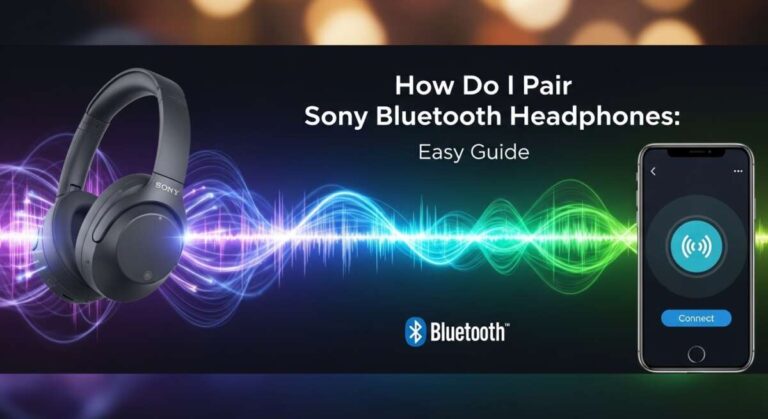
Turn on Bluetooth on both devices, put your Sony in pairing mode, then select it from your MacBook’s Bluetooth list.
I’ve helped dozens of people pair Sony headphones with Macs, and I’ll walk you through every step and pitfall for how to connect sony headphones to macbook. You’ll get clear, tested instructions for Bluetooth pairing, wired options, codec tips, firmware checks, and simple fixes when things go wrong — written in plain language so you can follow along fast and confidently.
Why pairing matters and what to expect
Knowing how to connect sony headphones to macbook saves time and avoids audio hiccups. Modern Sony headphones work well with macOS, but codecs, firmware, and macOS settings affect sound quality and features.
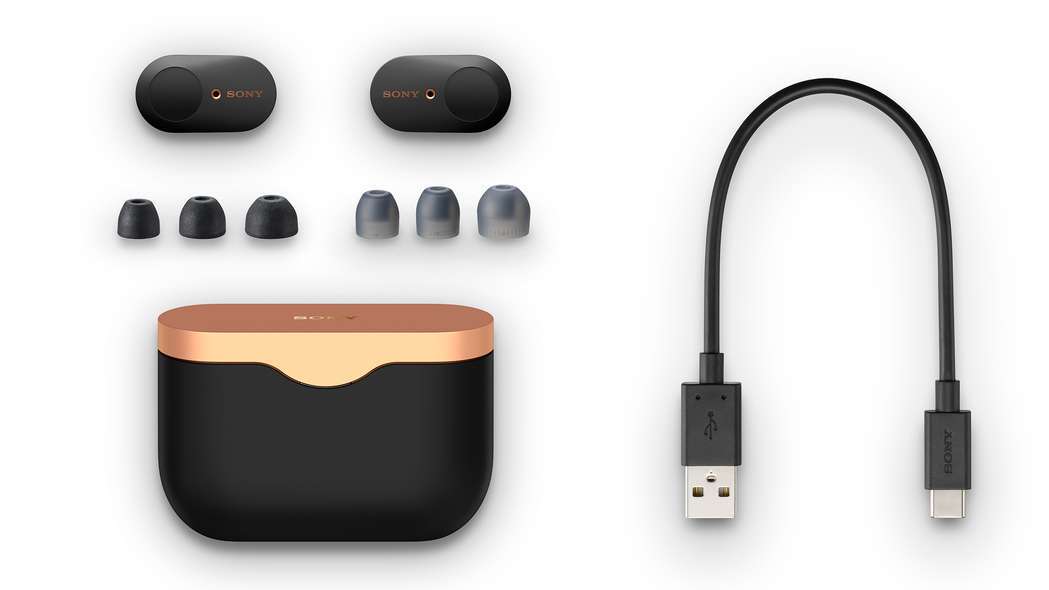
I’ve used Sony WH-1000XM4 and WF-1000XM4 with MacBooks and learned that simple steps usually solve most issues. Expect basic controls (play/pause, volume) to work right away; advanced features like LDAC and full noise-control settings might need mobile apps or wired use.

Step-by-step: how to connect sony headphones to macbook via Bluetooth
Follow these clear steps to pair wirelessly. If you need to pair multiple devices, repeat pairing for each MacBook.
- Prepare your MacBook
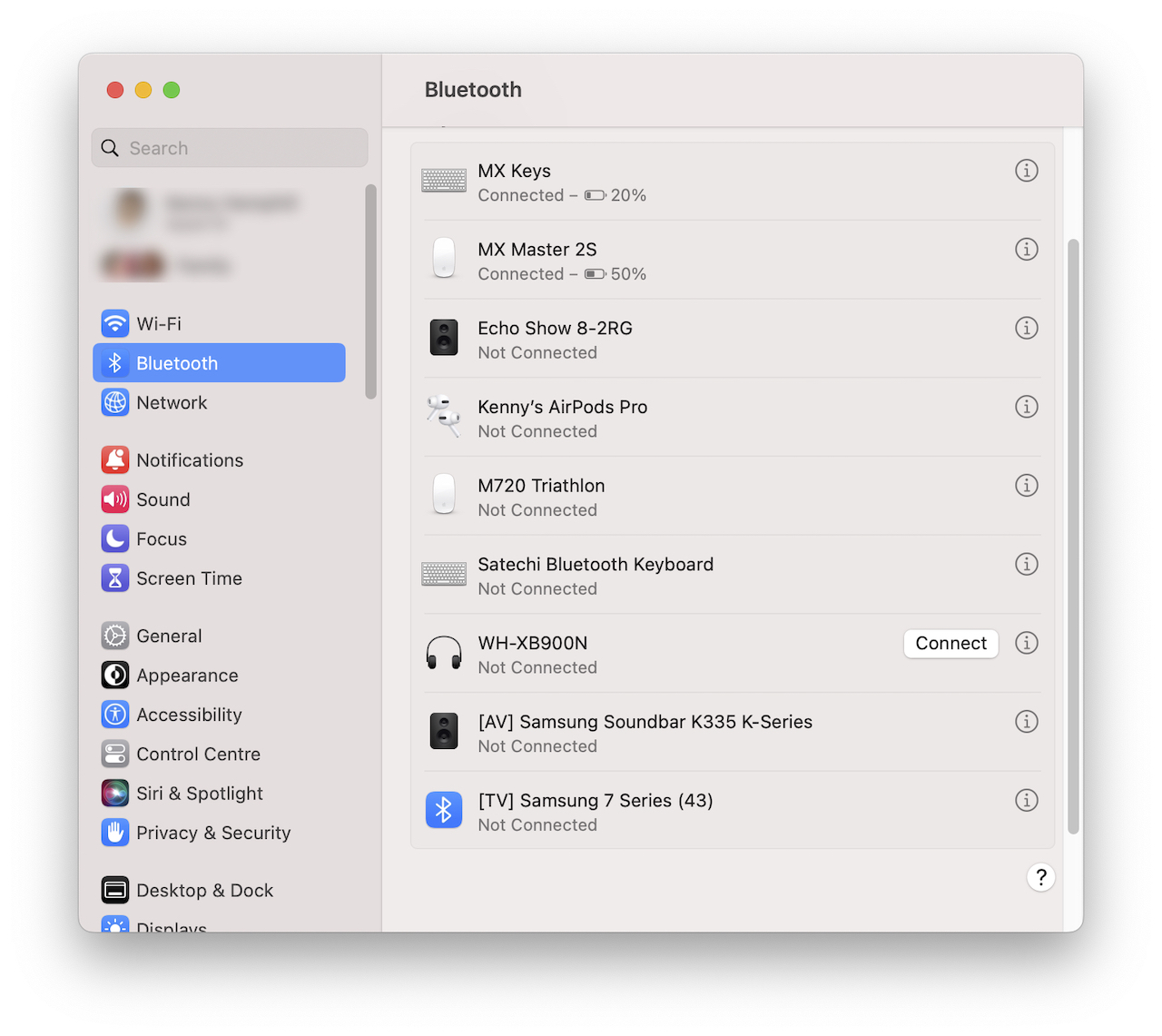
- Turn on Bluetooth from System Settings or System Preferences > Bluetooth.
- Make sure your MacBook is discoverable and not already actively connected to another headphone.
- Put your Sony headphones in pairing mode
- For most Sony on-ear/over-ear models: power on, then press and hold the power button or pairing button until the indicator flashes blue (about 7 seconds).
- For WF (true wireless) earbuds: place them in pairing mode by opening the case or pressing the touch control for a few seconds — check your manual if unsure.
- Pair on the MacBook
- Open Bluetooth settings and wait for your Sony model to appear in the device list.
- Select the Sony device name and click Connect. Accept any prompts.
- Confirm audio output
- Click the volume icon or go to System Settings > Sound and choose the Sony headphones as the output device.
- Test audio in Music or a video.
Tips
- If you’re prompted for a PIN, try 0000.
- If the Mac shows “Connected, no audio,” re-select the device as the sound output.
- For repeated pairing, remove the device from Bluetooth and pair again if the Mac remembers an old config.
How to connect sony headphones to macbook across different macOS versions
- macOS Ventura+: Use System Settings > Bluetooth and System Settings > Sound.
- macOS Big Sur/Monterey and earlier: Use System Preferences > Bluetooth and System Preferences > Sound.
For many users, this is the most reliable method to learn how to connect sony headphones to macbook.
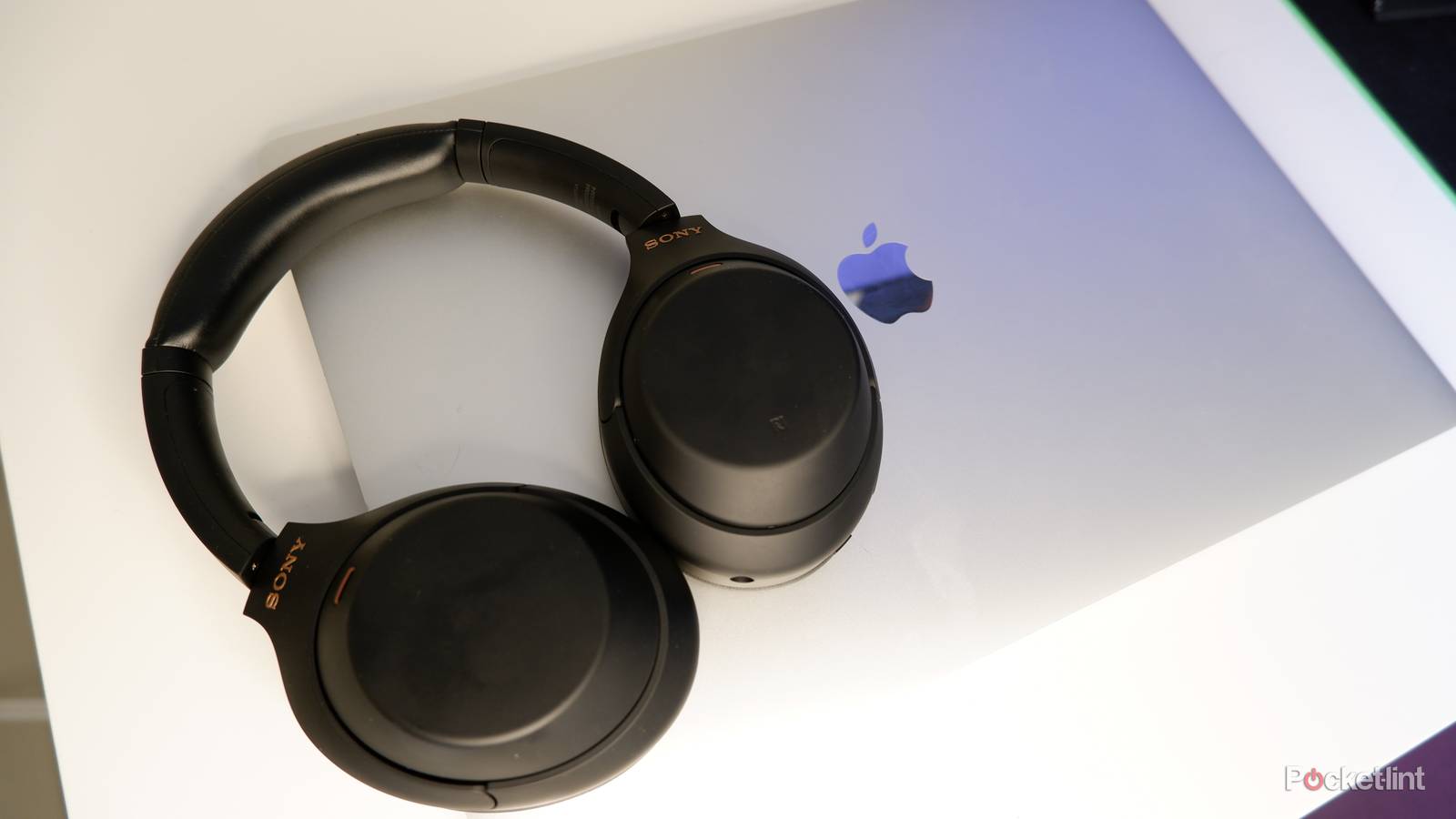
How to connect sony headphones to macbook using a wired connection
Use wired mode when you want the lowest latency and best audio quality or when battery runs out.
-
Use the supplied 3.5mm audio cable
- Plug the cable into the headphone jack on the headphones and into your MacBook headphone port or adapter.
- Set the MacBook audio output to the wired device in Sound settings.
-
Use USB-C or USB audio (if supported)
- Some Sony models accept USB-C audio or provide a USB audio mode. Check your model’s manual.
- Use a USB-C to USB-A adapter only if the headphone supports digital audio via USB.
-
If your MacBook lacks a headphone jack
- Use a USB-C to 3.5mm adapter or a USB audio interface.
- Confirm the adapter supports analog audio (not only charging).
Wired is a simple fallback when learning how to connect sony headphones to macbook wirelessly fails.

Advanced settings, codecs, and sound quality
Understanding codecs helps you pick the best setup for music and calls.
-
macOS audio codecs
- Macs generally support SBC and AAC over Bluetooth. LDAC and some Sony codecs often aren’t supported on macOS.
- For highest Bluetooth quality on Mac, prefer AAC if the headphone advertises it.
-
Why wired can be better
- Wired connections avoid Bluetooth codec limits and reduce latency for video and gaming.
- If you want CD-quality sound, wired is often the simplest route.
-
Using Sony smartphone apps
- Sony Headphones Connect provides equalizers, firmware updates, and noise-cancel settings on iOS/Android. Some features don’t exist on macOS, so use the mobile app to tune the headphone and update firmware.
- After updating via the mobile app, reconnect to your MacBook.
A practical rule: if you’re troubleshooting audio quality while learning how to connect sony headphones to macbook, try wired mode first to isolate Bluetooth issues.
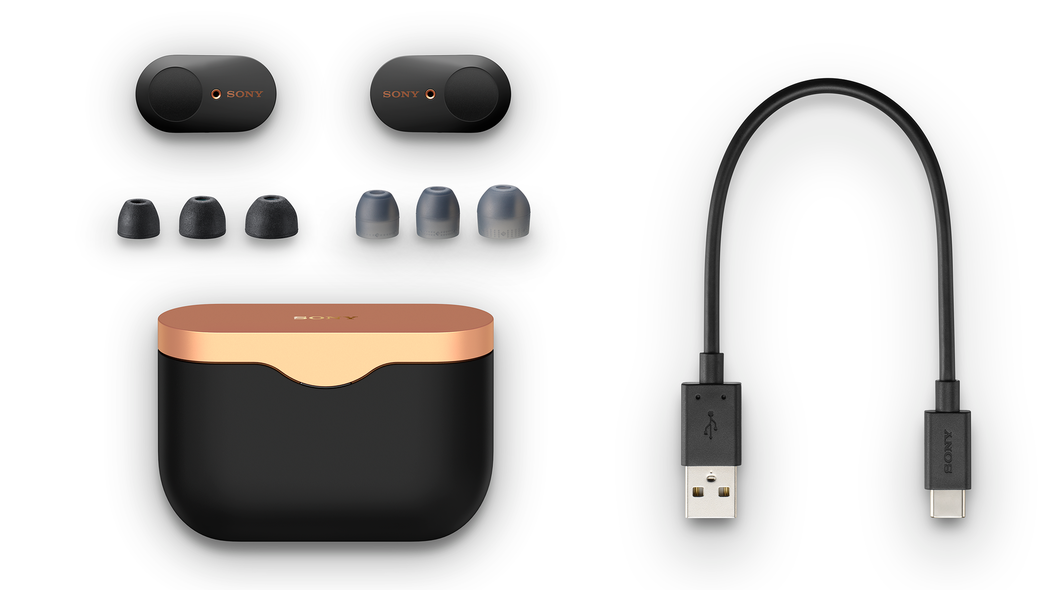
Troubleshooting: common problems and fixes
If pairing fails or audio drops, try these quick fixes I’ve used myself.
-
Basic checks
- Ensure headphones have charge and are in pairing mode.
- Turn MacBook Bluetooth off and on, then try pairing again.
-
Remove and re-pair
- Delete the Sony device from MacBook Bluetooth list, restart both devices, and pair fresh.
-
Reset the headphones
- Many Sony headphones have a factory-reset sequence (hold power + another button). If unsure, check the manual. Resetting often clears stubborn pairing issues.
-
Reset Mac Bluetooth (simple steps)
- Restart your Mac first. If necessary, use the Bluetooth icon while holding Shift + Option to access advanced debug options (this varies by macOS version). Then re-pair.
-
Update firmware and macOS
- Use Sony’s app on your phone to update headphone firmware, and keep macOS updated for Bluetooth stability.
-
Interference and multi-device issues
- Turn off other Bluetooth devices near your MacBook. If headphones auto-connect to a phone, disconnect them there first.
Personal tip: I once had dropouts with a WH-1000XM4; updating the firmware via the Sony mobile app fixed it. If you hit frequent dropouts, update firmware before digging deeper.
Common mistakes to avoid
- Trying to pair while headphones are connected to another device.
- Skipping firmware updates before troubleshooting.
- Assuming all headphone features work on macOS the same as on a phone.

Source: veracartolano.com
People also ask: Frequently Asked Questions of how to connect sony headphones to macbook
How do I put my Sony headphones in pairing mode for MacBook?
Press and hold the power or pairing button until the light flashes blue (about 7 seconds). For true wireless buds, open the case or press the touch controls; consult your manual for model specifics.
Why won’t my MacBook find my Sony headphones?
Common causes are low battery, headphones still connected to another device, or Bluetooth turned off on the Mac. Remove any old pairings and restart both devices, then try pairing again.
Can I use Sony Headphones Connect on my MacBook?
Sony Headphones Connect is mainly a mobile app for iOS/Android and isn’t available as a full macOS app; use the mobile app to adjust EQ and update firmware, then connect the headphones to your MacBook for audio.
How can I improve audio quality between Sony headphones and MacBook?
Choose wired mode for best fidelity, or ensure AAC codec is used for Bluetooth audio. Update headphone firmware and macOS, and reduce interference from other wireless devices.
What should I do if audio keeps dropping on macOS?
Restart the Mac and headphones, remove and re-pair the device, update firmware, and check for nearby wireless interference. If problems continue, try wired mode to isolate Bluetooth issues.
Are Sony noise-canceling features available on MacBook?
Basic noise cancelling runs on the headphones themselves and will work when connected to a MacBook. Advanced settings and adaptive features are usually controlled via Sony’s mobile app.
Conclusion
You now have step-by-step ways to learn how to connect sony headphones to macbook, whether you want Bluetooth convenience or wired fidelity. Start with simple Bluetooth pairing, use wired mode when needed, and keep firmware and macOS up to date to avoid trouble. Try the steps now: pair once, test audio, and save time with the tips above — then leave a comment about which Sony model you connected or any issues you ran into.