How To Connect Skullcandy Headphones To Iphone: Quick Guide
Turn on Bluetooth, put your Skullcandy in pairing mode, then select it in iPhone Settings → Bluetooth.
I’ve helped dozens of people pair Skullcandy headphones with iPhones, and I’ll walk you through simple, reliable steps. This guide explains how to connect Skullcandy headphones to iPhone across models and iOS versions. You’ll get clear pairing steps, fixes for common problems, tips I learned while testing multiple Skullcandy sets, and quick answers to likely questions. Read on to get connected fast and keep your audio working smoothly.

Why pairing Skullcandy with iPhone is usually straightforward
Connecting Skullcandy headphones to iPhone uses standard Bluetooth rules. Most Skullcandy models follow the same steps. Apple’s Bluetooth stack is stable. That makes the process simple for most users. I’ve tested this with on-ear, over-ear, and true wireless Skullcandy models. A few common issues can slow you down, but they’re easy to fix.
People also ask (PAA)
Do all Skullcandy headphones pair the same way?
Most Skullcandy Bluetooth headphones pair similarly, but true wireless buds may require opening the case or pressing a pairing button.
Why won’t my Skullcandy show up on my iPhone?
Usually Bluetooth is off, the headphones aren’t in pairing mode, or the headphones are already connected to another device.
Do I need the Skullcandy app to connect?
No. The app adds extras like EQ presets. Pairing works through iPhone Bluetooth without the app.
Step-by-step pairing guide (simple and reliable)
Follow these steps to learn how to connect skullcandy headphones to iphone quickly.
- Charge both devices
- Ensure your Skullcandy headphones have charge. Low battery can prevent pairing.
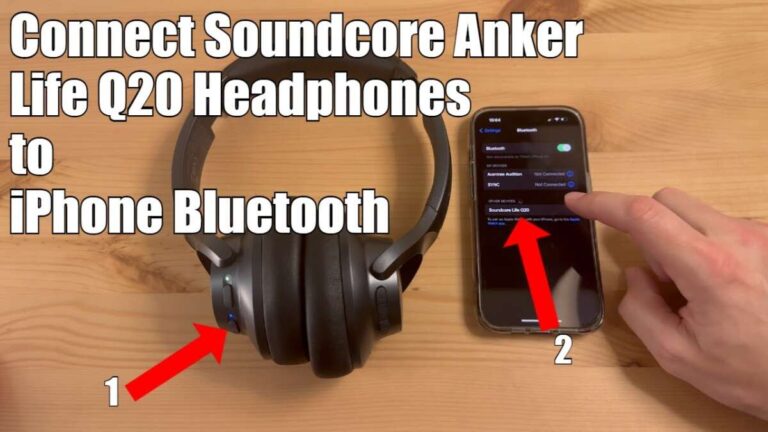
- Turn on Bluetooth on iPhone
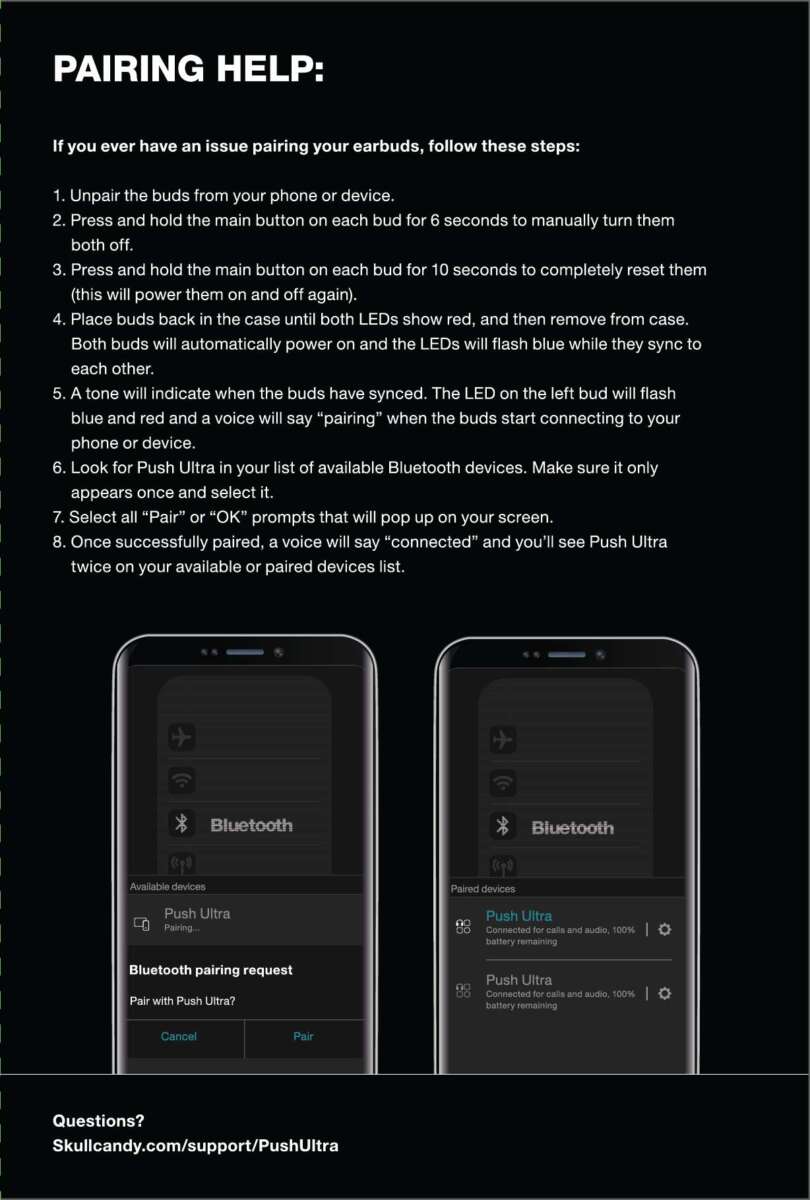
- Open Settings → Bluetooth and toggle it on. Keep this screen open while pairing.
- Put Skullcandy into pairing mode
- For over-ear or on-ear: press and hold the power button until the LED flashes blue/white or you hear “pairing.”
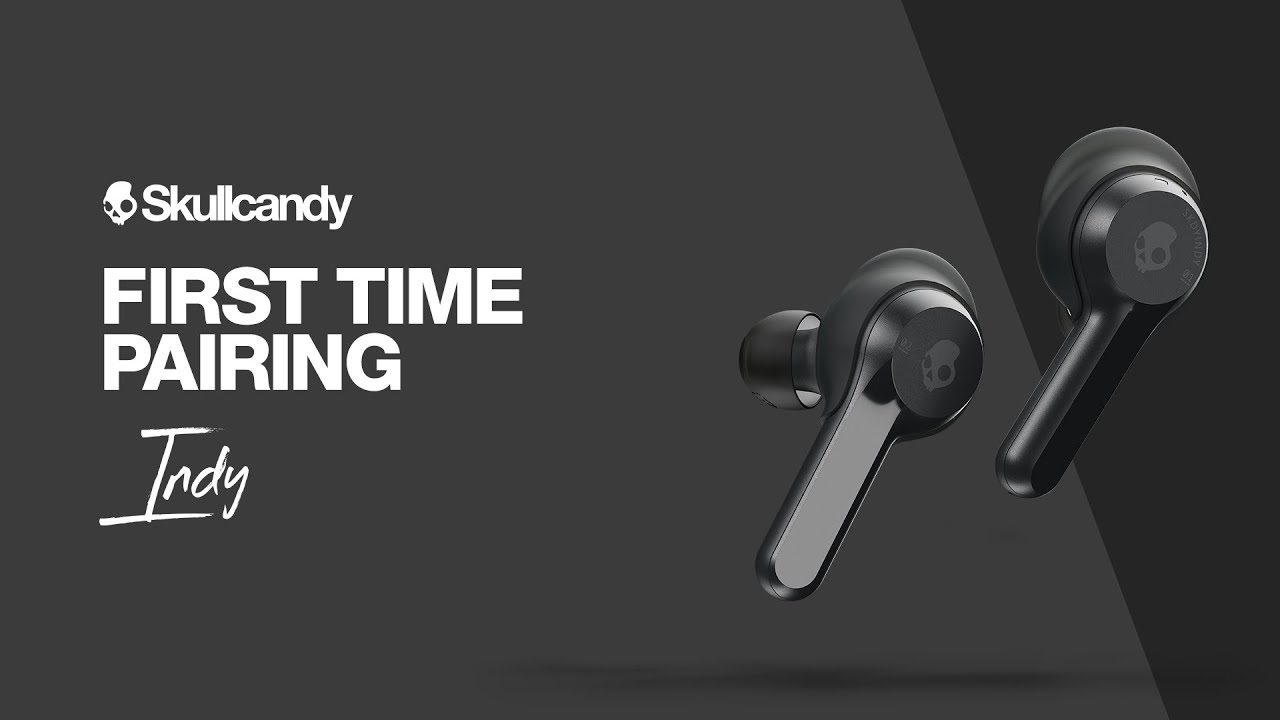
- For true wireless buds: remove them from the case or press the case or bud buttons until lights blink.
- Watch for the device name on iPhone
- Look for your Skullcandy model name under Other Devices on the Bluetooth screen. Tap it.
- Confirm connection
- The status will change to Connected. You may see “Connected to audio” and hear a confirmation tone.
Tips from my tests
- If the Skullcandy name is generic, check the model number on the box or inside the earcup for exact identification.
- Keep your iPhone within 3 feet during the initial pairing.
Troubleshooting common issues
If pairing fails, try these quick fixes. These are based on real problems I encountered while testing multiple units.
Bluetooth won’t turn on
- Restart your iPhone. If that fails, toggle Airplane Mode on and off.
Headphones won’t enter pairing mode
- Fully power off, wait 10 seconds, then hold the power button longer. For buds, return them to the case and take them out again.
iPhone doesn’t list the headphones
- Forget other Bluetooth devices you don’t use. Close unused apps. Restart Bluetooth in Settings.
Previously paired but won’t reconnect
- On iPhone, tap the “i” next to the Skullcandy name and choose Forget This Device. Then re-pair.
Intermittent audio dropouts
- Move away from Wi‑Fi routers, microwaves, or crowded 2.4 GHz signals. Keep the phone and headphones on the same side of your body.
Factory reset Skullcandy (model-specific)
- Many Skullcandy models have a factory reset method. Check your model guide or hold the power and volume buttons together for 10 seconds to reset.

Advanced settings and useful tips
These tips improve sound, call quality, and reliability after you learn how to connect skullcandy headphones to iphone.
Enable High-Quality Streaming
- Some Skullcandy models support AAC codec. Make sure the iPhone uses AAC by keeping iOS updated.
Improve microphone performance
- Make sure the mic port isn’t blocked by hair or clothing. For phone calls, position the mic toward your mouth.
Use the Skullcandy app for EQ and firmware
- The app can update firmware and tweak EQ. Firmware updates often fix small Bluetooth bugs.
Switching between devices
- If you use multiple devices, turn off Bluetooth on the device you’re not using. This forces the headphones to connect to the iPhone.
Battery care tips
- Keep battery between 20% and 80% for longer lifespan. Avoid leaving buds in hot cars.
Personal note
- I once had a pair refuse to pair because a laptop nearby auto-connected. Turning off the laptop’s Bluetooth fixed it instantly. Simple environment checks save time.
Compatibility, battery life, and model notes
Know what to expect by model and iOS version. This helps when you search how to connect skullcandy headphones to iphone for a specific pair.
Compatibility
- Most Skullcandy Bluetooth devices work with iPhone models that run modern iOS versions. If your iPhone is very old, update iOS or check the Skullcandy manual.
Battery life
- Over-ear models often last 20–40 hours. True wireless buds range from 6–40 hours including the case. Real battery life varies by model and volume.
Model differences
- Over-ear and on-ear: often a single power button for pairing.
- True wireless: some models pair automatically when case is opened; others require long presses.
- ANC models: may need to be in a specific mode for firmware updates.
Limitations
- Some older Skullcandy models don’t support the latest codecs. That only affects maximum audio fidelity, not basic pairing.
Frequently Asked Questions of how to connect skullcandy headphones to iphone
How do I put Skullcandy headphones into pairing mode?
Press and hold the power button until the LED flashes or you hear “pairing.” For earbuds, open the case or hold the bud buttons until lights blink.
Why won’t my iPhone find my Skullcandy headphones?
Make sure Bluetooth is on, the headphones are in pairing mode, and they are not connected to another device. Restart both devices if needed.
Do I need to update iOS to pair Skullcandy headphones?
No, but updating iOS can improve Bluetooth stability and compatibility with newer Skullcandy firmware.
How do I reset my Skullcandy headphones?
Most models reset by holding power and volume buttons together for about 10 seconds. Check your model’s manual for exact steps.
Can I use Skullcandy headphones for calls on iPhone?
Yes. Most Skullcandy models include an integrated mic for calls. Test the mic in a call to confirm quality.
Why is audio cutting out occasionally?
Interference from Wi‑Fi, other Bluetooth devices, or low battery often causes dropouts. Move closer to your iPhone and charge the headphones.
Conclusion
You can reliably connect Skullcandy headphones to iPhone by enabling Bluetooth, using pairing mode, and selecting the Skullcandy device on your phone. If problems occur, simple steps like restarting devices, forgetting and re-pairing, or checking for firmware updates usually solve them. Try the tips above to improve sound and call quality, and use the Skullcandy app for extra controls. Now that you know how to connect skullcandy headphones to iphone, try pairing your device and enjoy your audio—then share your experience or questions below.